TiTaniUm: I'll give you a quick intro in getting started.
I'll talk you through the UV window itself first.
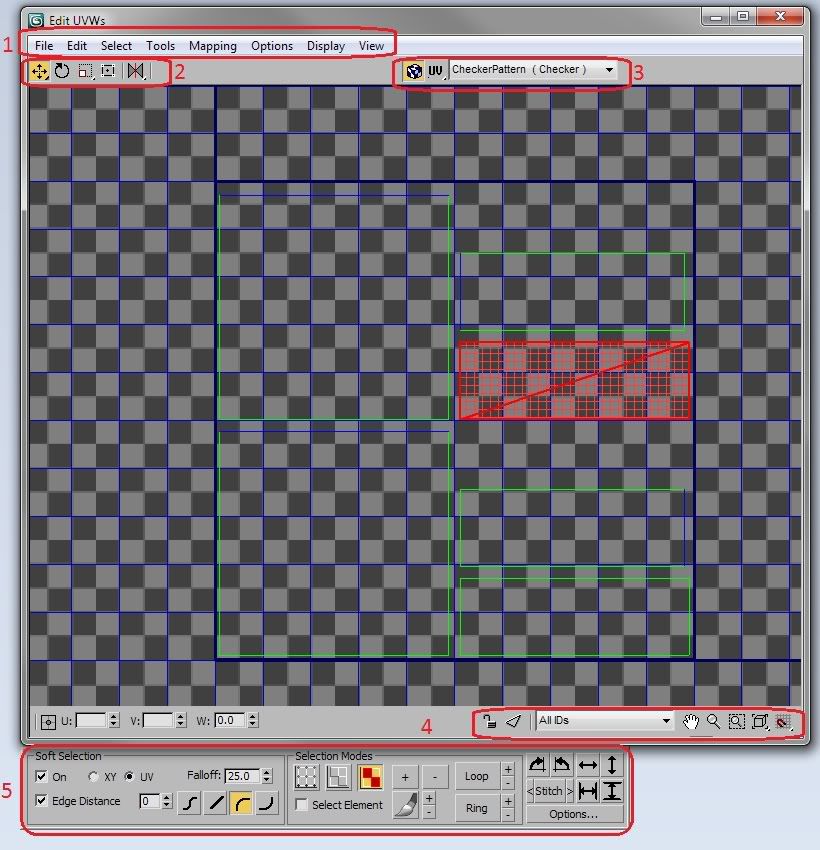 1
1
File: Hope these are self explanatory, you can save and load UV's here, if you want to transfer UV's between objects, the Vertex ID's have to be exact, else you'll get a lot of errors.
Edit: Same here, copy and past work differently, they allow you to copy the U, V and W properties and past them into another selection.
Select: The convert tools will convert your current selection to the same selection in another mode, ie, from polygon to edge or vertex to polygon. Kind of like holding down shift when switching between modes to keep your selection. Invert selection should be obvious. Keep this in mind when rendering out your flattened map, go to select>Select Overlapped faces. You usually don't want anything overlapped and this will help pinpoint if you have accidentally overlapped any polygons.
Tools: Most of these are self explanatory, so i'll just pick out some of the more important ones you'll be using.
Break will remove a polygon from anything else that it is welded to.
Pack UV's will attempt to reorder and move your unwrapped mesh to make the most of the space available, extremely useful tool but will ruin your UV's if you use Recursive Packing, make sure to use Linear Packing Instead
Render UVW Template renders out your unwrapped mesh into an image file so you can save it out and import it into another package, max users waited years for this feature so don't go back to screenshotting!
Mapping contains the different ways to flatten out your mesh, experiment around with them to see which you like best. The rest of the drop down menu should be self explanatory, ask away if you're unsure about anything.
2
From left to right
Move,rotate,scale,freeform mode (creates a box around your selection with the ability to move, rotate and scale without switching tools.) and Mirror tools(hold down to get more mirror and flip options).
3
The little blue square is to show the background mapping inside the UV window, it does not affect the max viewport.
UV button shows what coordinate system you are using, UV's, UW's or VW's.
The drop down menu allows you to choose a texture or apply it to the mesh inside the max viewport whilst the edit window is open.
4.
The U, V and W input boxes allow you to change the respective coordinates with keyboard input. The little Keypad is a lock selection button and the triangle next to it hides everything but what you have selected. The drop down menu allows you to filter what material ID you are viewing in the window. Next to that all of your different ways of navigating the viewport.
5.
These should all be self explanatory, there are your vertex, edge and polygon modes with soft selection to the left of them. What's interesting here is the rotate and align buttons on the right, they make it easier to rotate to 90 degrees without having to switch angle snap on and off all the time.
Any questions about anything a little more specific let me know.
I've created a box for this, just to demonstrate.
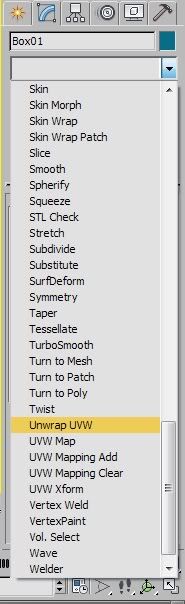
Go down to your modifier list and select Unwrap UVW.
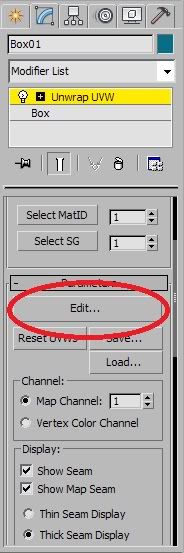
Then hit the edit button.
This should open up a new window with your UV's in. The mousewheel zooms in, click and drag the middle mouse button to pan around. Right click brings up your quad menu and left click selects.
For the purpose of these screens i've turned off the background image and the grid, if you want to do the same then go to view>show grid and view> show map(or click the cube next to the drop down menu in the top right)
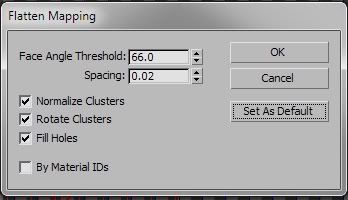
They're going to look terrible now, so the best starting place is to go to the bottom of the UV window and select polygons, then select them all with ctrl+A or just dragging a selection box around everything. Now go to Mapping>Flatten Mapping.
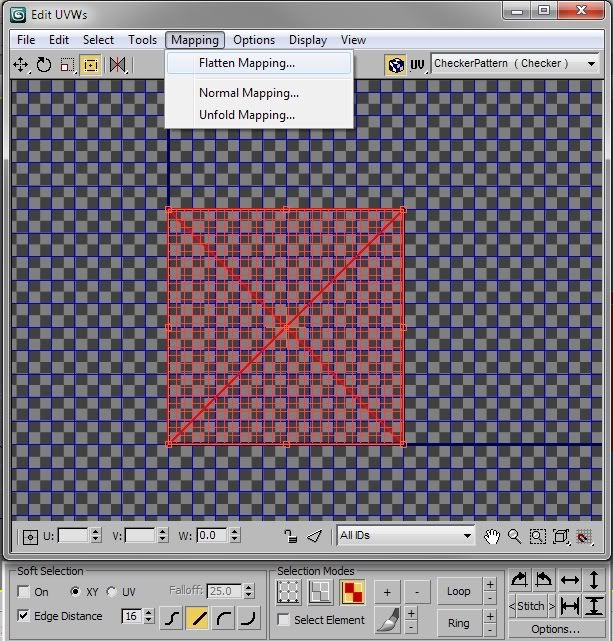
I usually find 60-70 is best but leaving it at 45 will usually suffice. Make sure normalize clusters is turned on, this will make sure it flattens the mapping inside the little blue square, which is a guide for when you render out a square texture for painting in another package. You can pretty much leave all the settings as they are though.
Now go to the bottom of the UV window and select edge mode, the one in the middle. Click select any edge. You'll notice that the one you have selected is coloured in red and the one it is attached to is coloured blue. Right click on the red edge and press stitch selected.
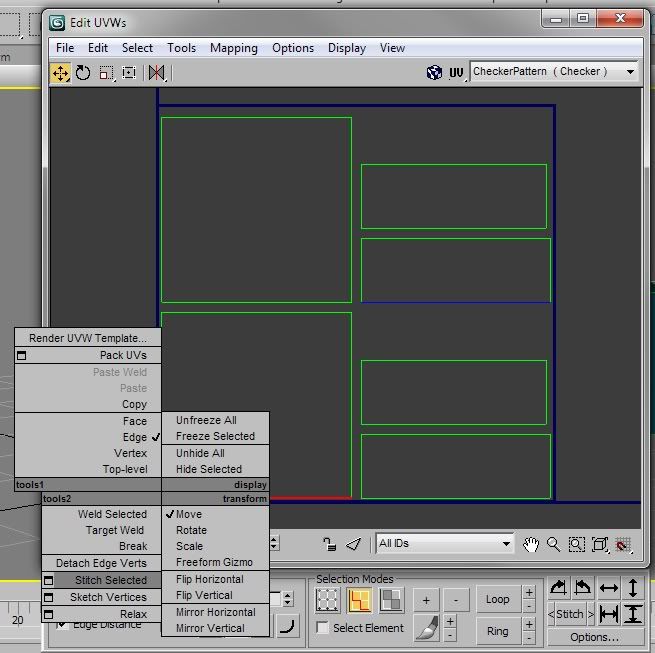
This will move the blue edge over the red edge and stitch them together. This is a great way to get things in their correct places before tweaking the vertices.
To view the checker pattern on your own model, click on the drop down menu and click again on checker pattern, your viewport will update with the checker pattern applied.
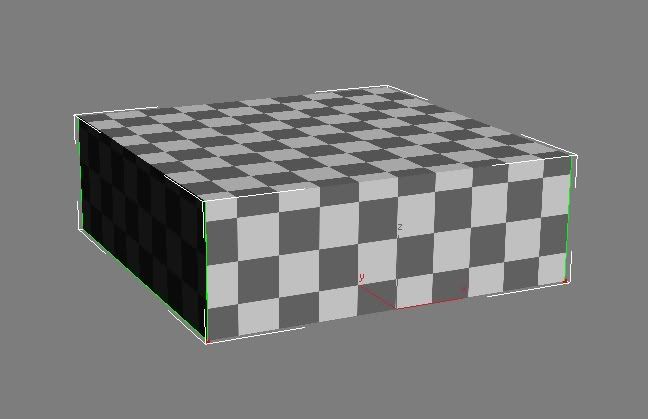
You can also select a texture you have already created in the same drop down box, but getting all the squares lined up perfectly means there will be no texture stretching or deformities when you come to texture.
Click pick texture and then select bitmap from the menu that comes up, if you want to select a bitmap that you have already loaded into 3dsmax then you have to click "Mtl Editor" from the left and this will show all images that have been loaded into the material editor.
Hope it helps to get you started, but i will go more in depth in the tutorial i'm writing at the moment.
